Softaculous Backup: Add Remote Backup Location
Softaculous is a powerful auto-installer for popular apps such as WordPress, PrestaShop, Joomla, etc. One of its important tools is an automatic scheduled backup. This backup can cause storage to fill up overnight. However, our premium license allows users to use remote backup locations, such as Microsoft OneDrive, Google Drive, FTP, SFTP, etc.
Below is a guide on adding a remote backup location to your softaculous panel.
STEP 1: Log in to cPanel
Login to your cPanel account either by visiting cpanel.yourwebsite.com or yourwebsite.com/cpanel. Alternatively, you can use the easy one-click login from our client area to log in directly to your cPanel.
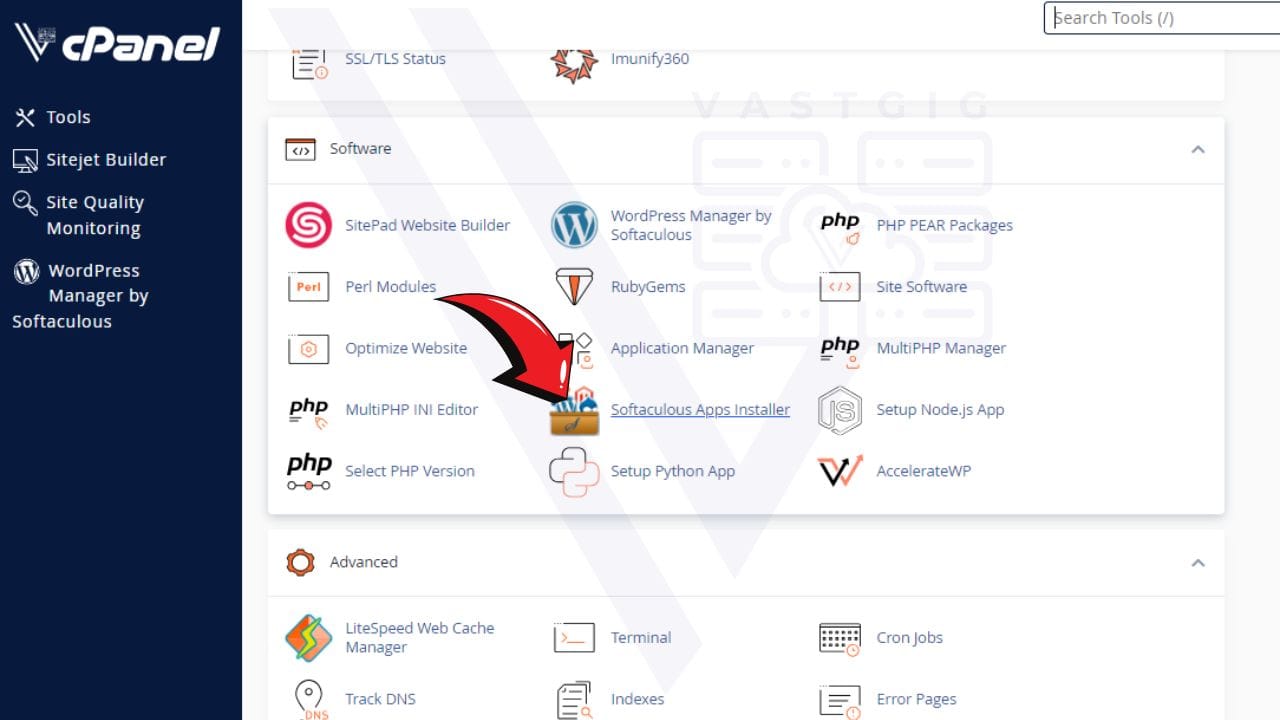
STEP 2: Navigate to Softaculous
Scroll down to softaculous and click/tap to open.
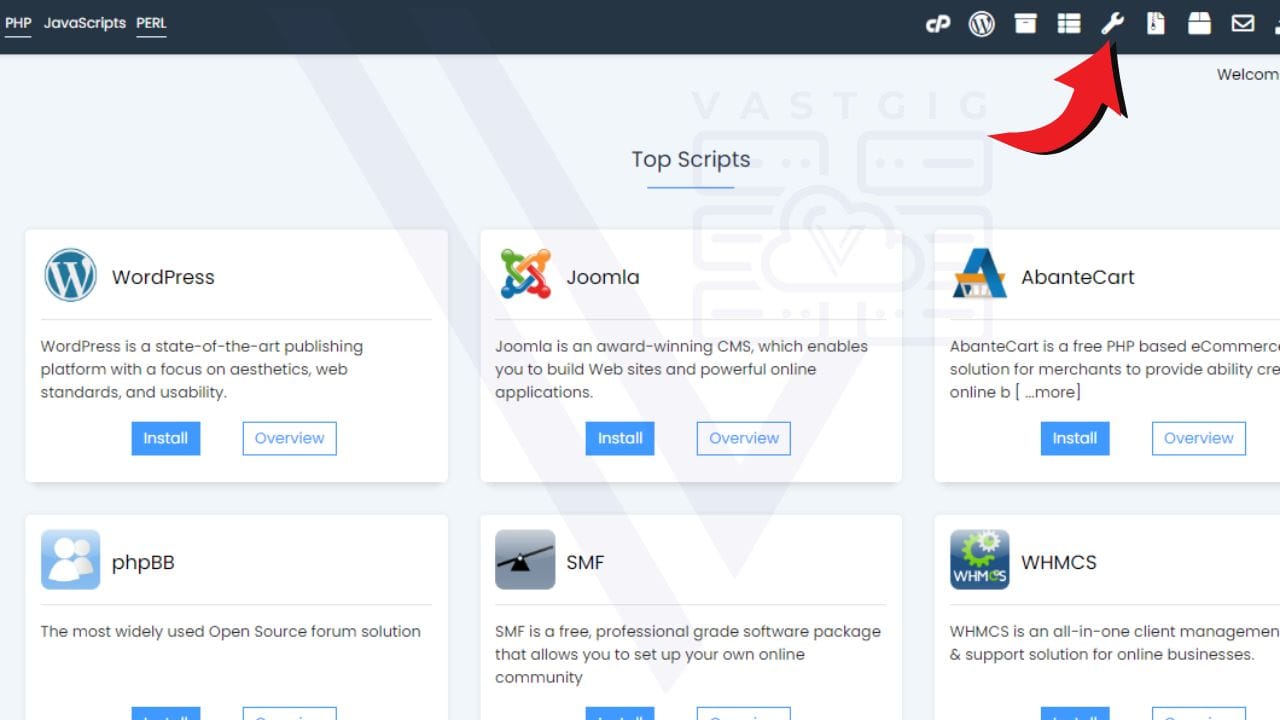
STEP 3: Go to Softaculous Settings
Click the spanner icon (5th icon in the top-right corner). Which will open the settings page
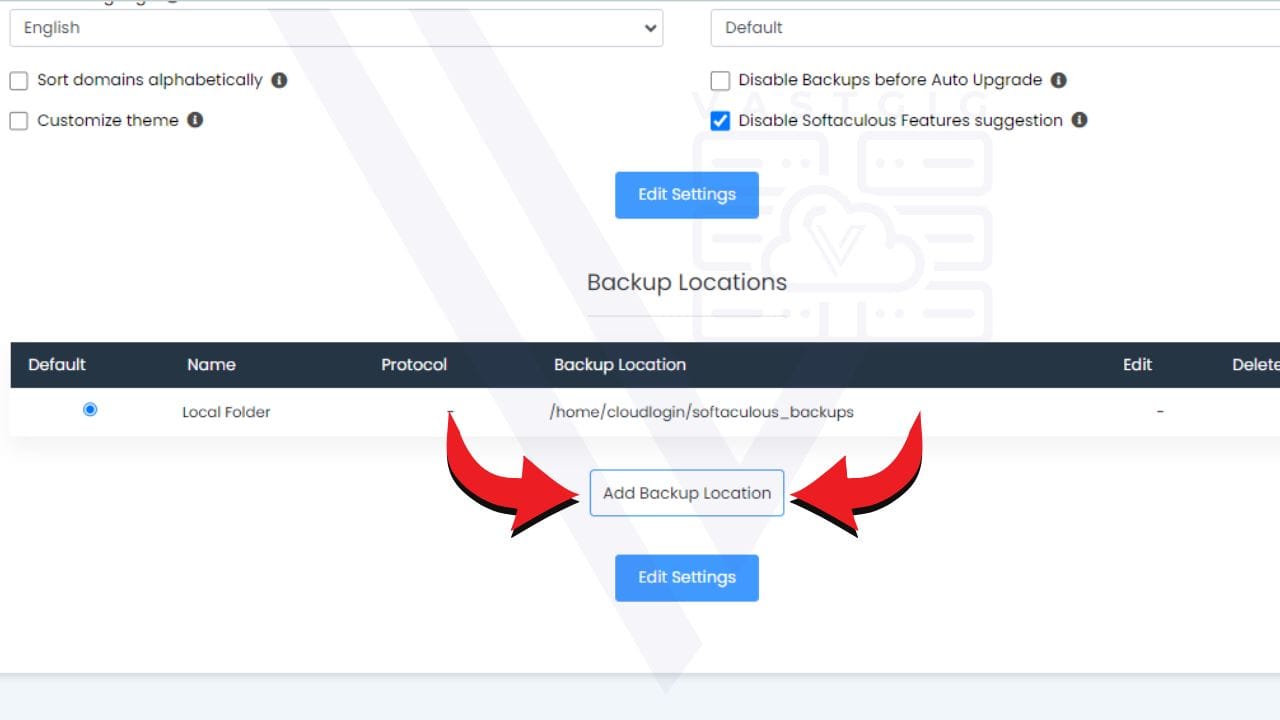
STEP 4: Add Backup location
Scroll down to “Backup Locations” and click the white “Add Backup Location” button.
- Fill up the information, the “Location Name” column is for your reference only. You can enter any name you prefer for your new backup location.
- The “Protocol” column is where you select the remote backup location of your choice.
- Backup Location, although optional, is where you define your folder name, e.g., “/SoftaculousBackup”
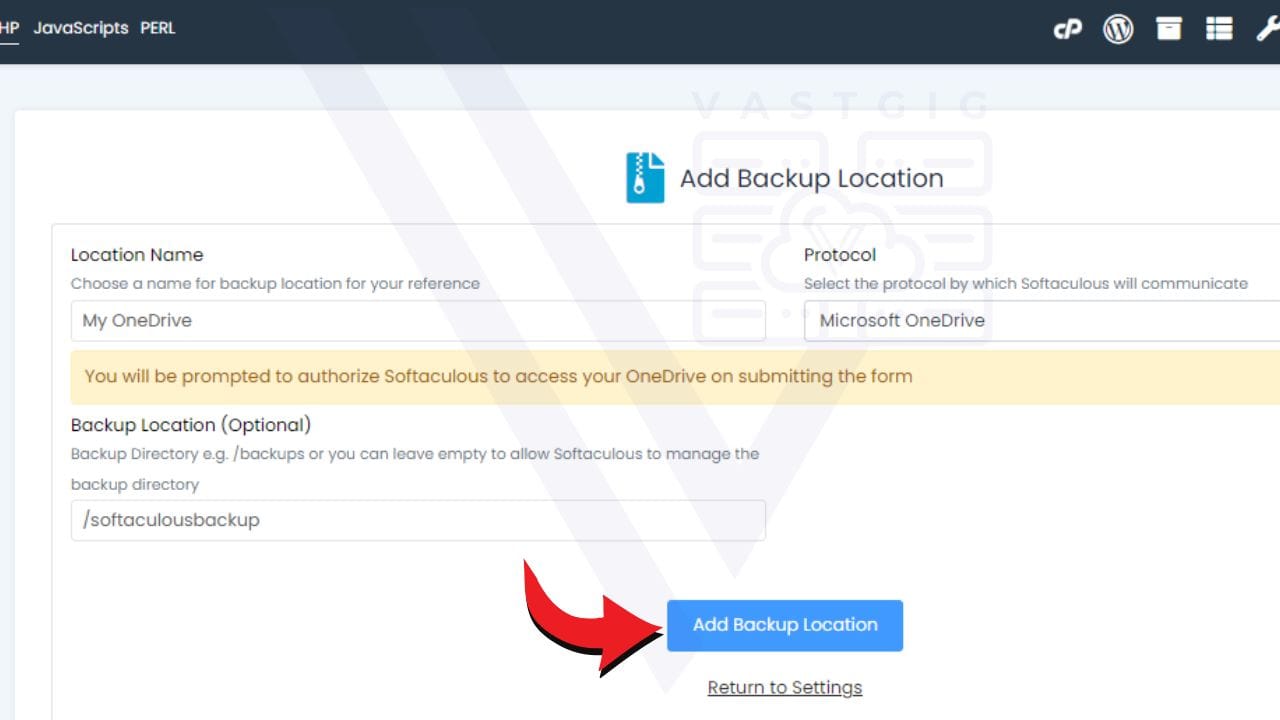
OneDrive is the location shown in the images in this guide. Once completed, the type of the remote location will determine how the authorisation is served. Follow the onscreen steps to authorise Softaculous with the appropriate permissions.
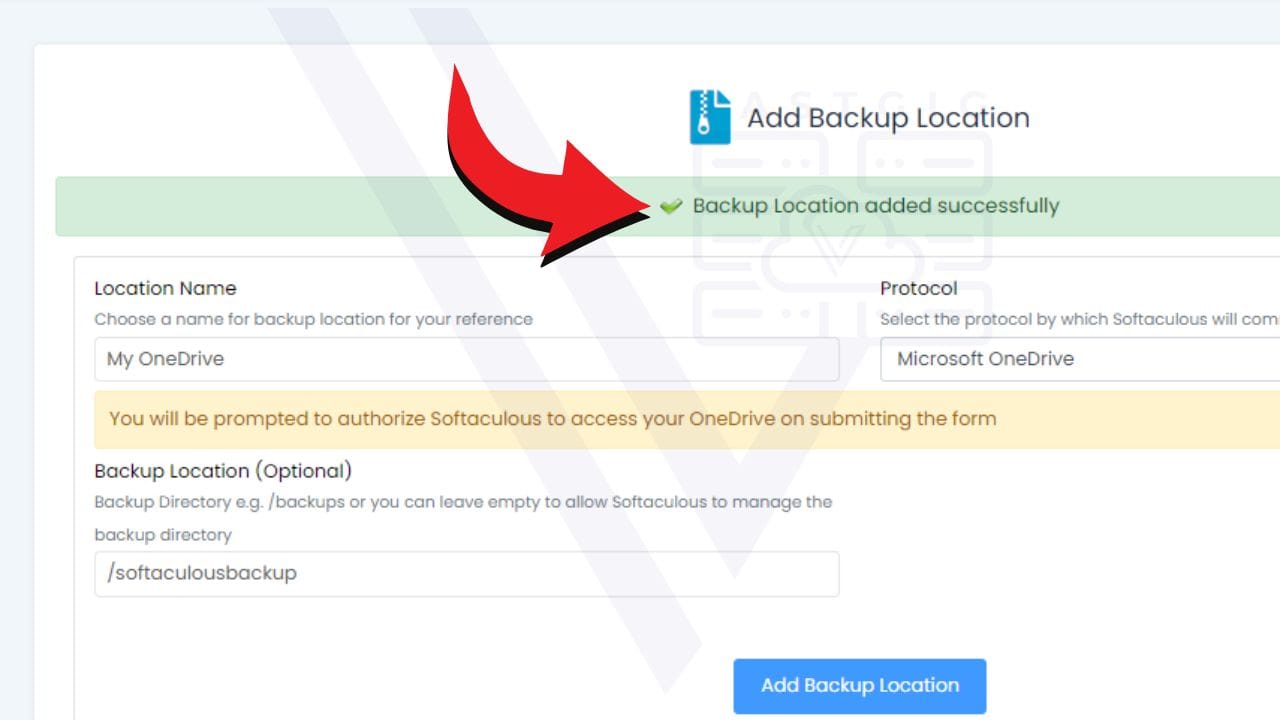
If successful, you will see a message stating “Backup Location added successfully,” as shown in the image above.
FINAL STEP: Set as Default
The final step is to set your new backup location as the default location. Right on the same page, click the radio button at the beginning of the new backup location, then click “Edit Settings” to save your changes.
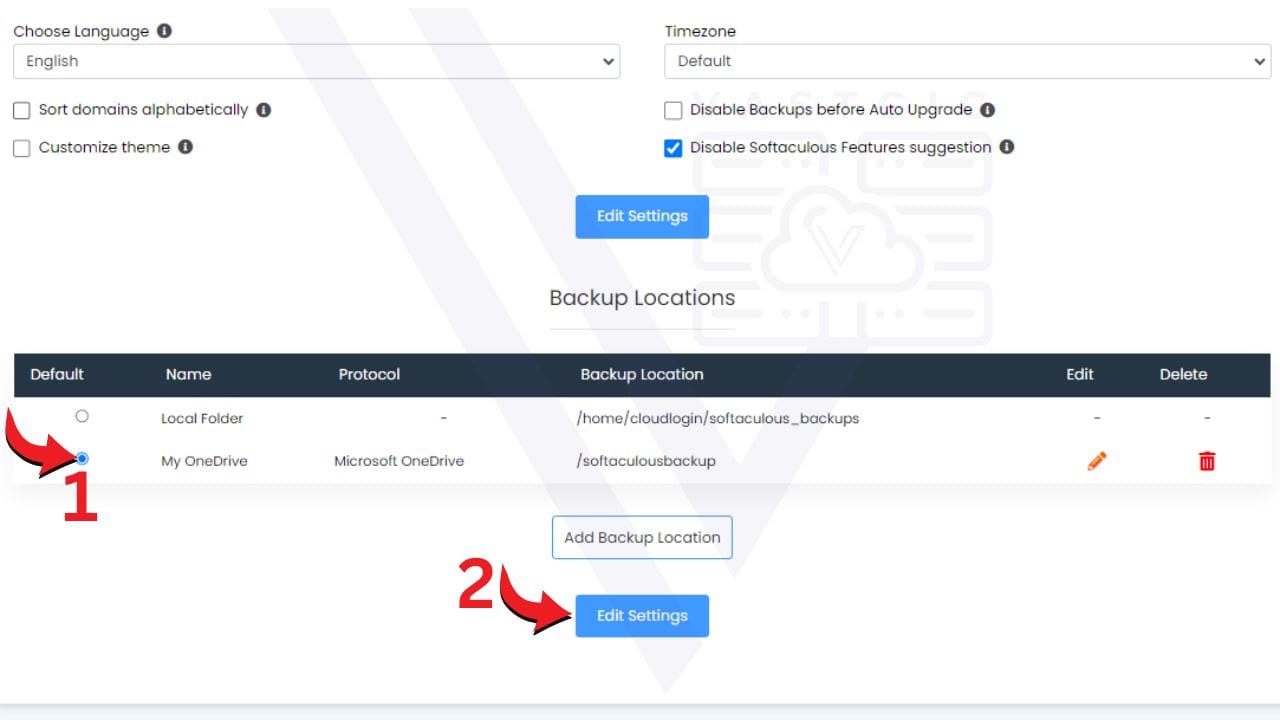
Now, all your softaculous backups will be backed up in the new remote location you have just set up. It is important to note that even in the unlimited plan, some features are disabled when storage usage is high; for instance, the BIZ hosting plan will no longer be able to use weekly server backups once storage usage exceeds 30GB. With this new remote location, you can have peace of mind knowing that your website is backed up to remote storage outside your hosting server.